Install Funput on iOS
Funput is a Vietnamese keyboard for iPhone and iPad. It supports both VNI and Telex input methods. After installing the app, you must add Funput to the iOS keyboard list before using it in Notes, Messages, Mail, or another app.
Download
Get Funput for free on the App Store:
Requirements
- An iPhone or iPad running iOS/iPadOS 18.6 or later.
- The Funput app installed from the App Store.
Step 1: Open Funput
Open Funput from the Home Screen. On the Settings tab, the Finish setting up Funput card shows the three required setup steps.
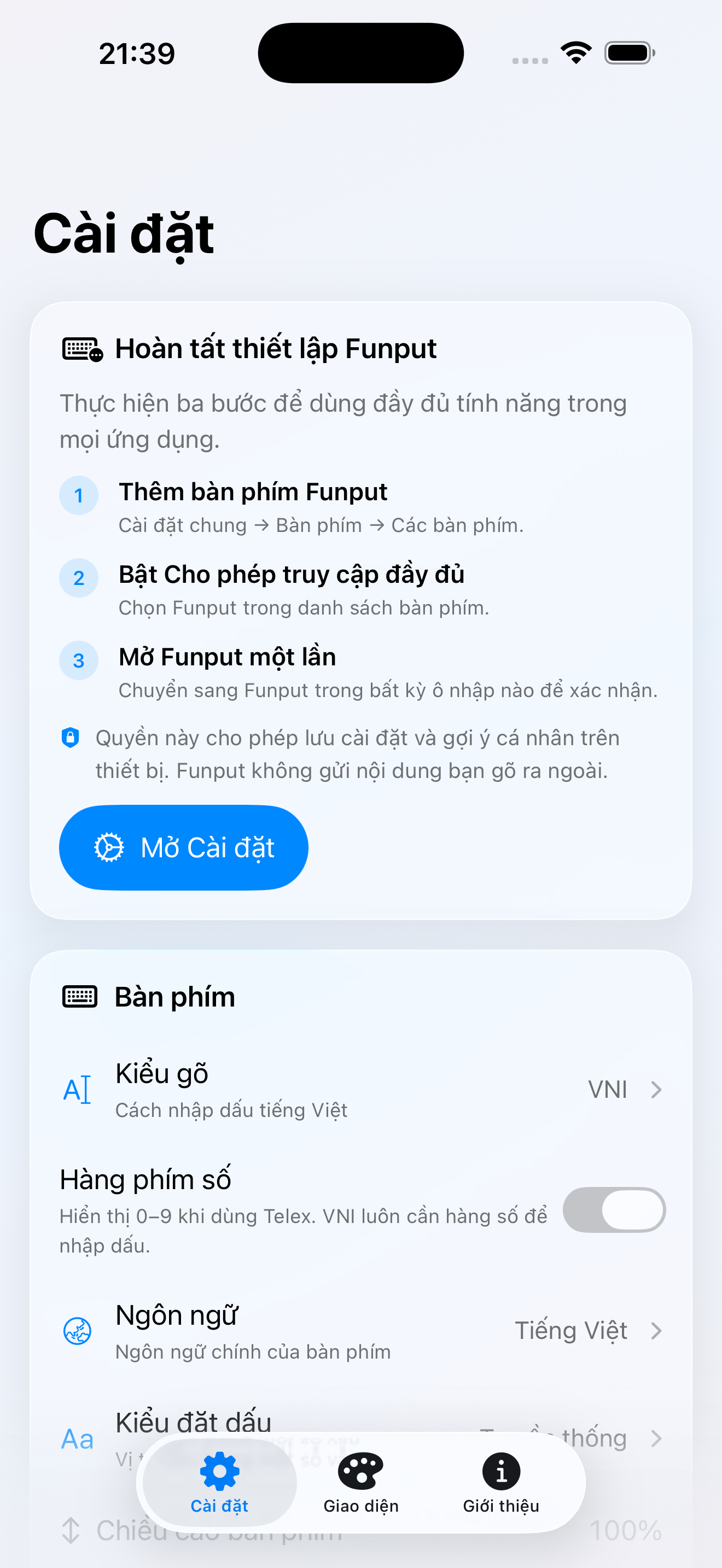
Funput displays the required steps when it is opened for the first time.
Step 2: Add the Funput keyboard
Tap Open Settings in Funput, then open Keyboards. You can also navigate manually to:
Settings → General → Keyboard → Keyboards → Add New Keyboard… → Funput
Some labels may differ slightly depending on the iOS version and system language.
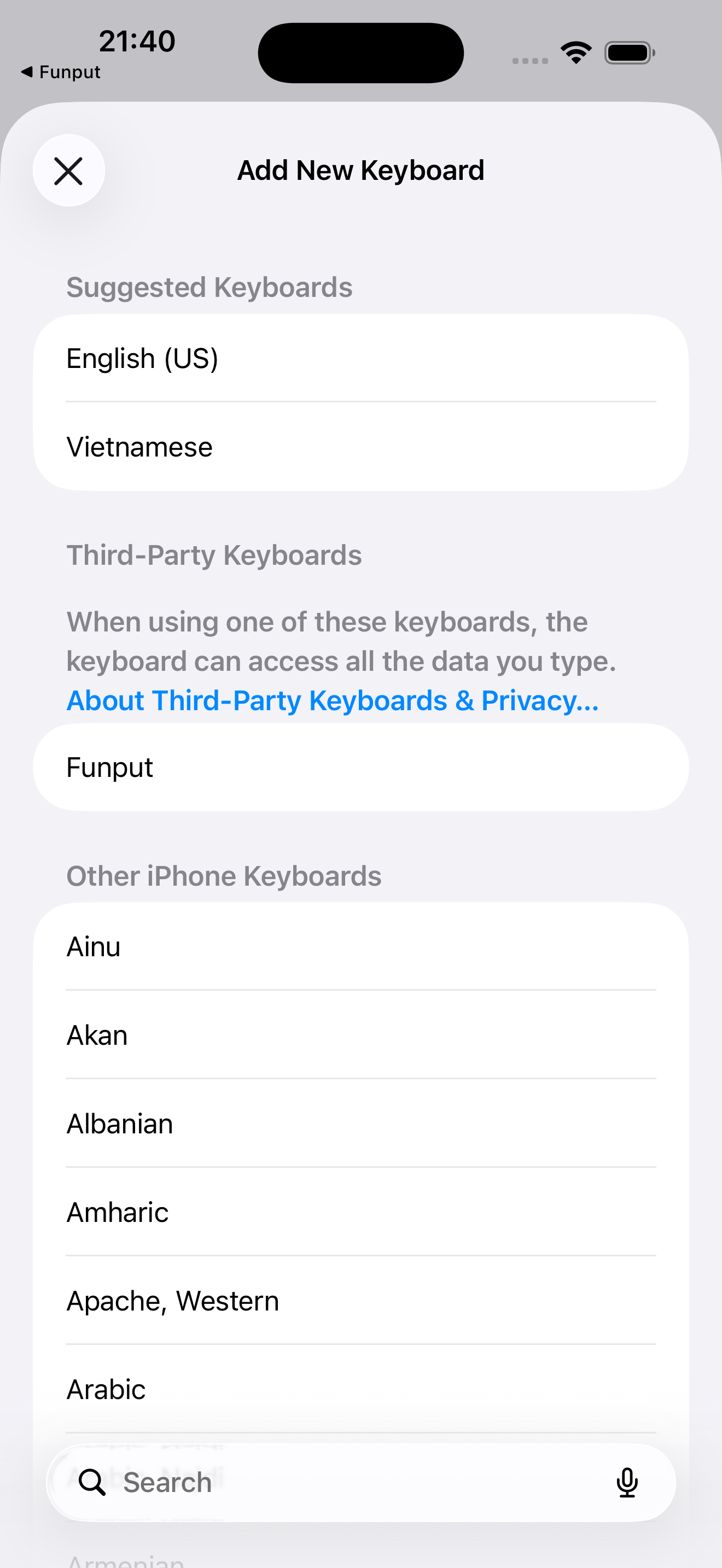
Select Funput under Third-Party Keyboards.
Step 3: Enable Allow Full Access
Select Funput in the keyboard list, turn on Allow Full Access, and confirm the iOS prompt.
This permission allows the Funput app to share keyboard preferences such as the input method, theme, personal suggestions, haptics, and sounds with its keyboard extension. Preferences and personal suggestions remain on the device. Funput does not transmit what the user types.
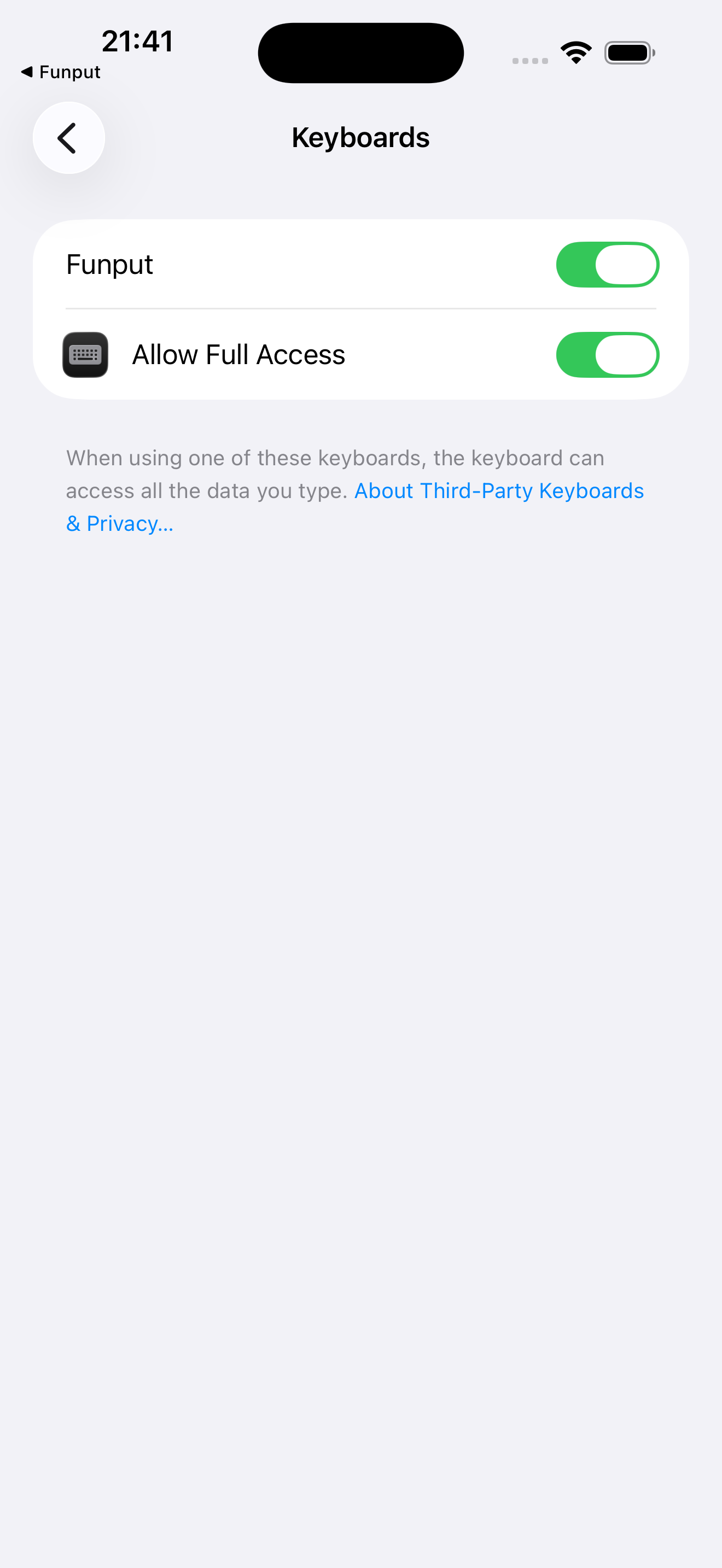
Enable both Funput and Allow Full Access.
Step 4: Switch to Funput and type
- Open Notes, Messages, or any app with a text field.
- Tap the text field to display the keyboard.
- Touch and hold the globe key.
- Select Funput from the keyboard list.
- Type a Vietnamese test sentence.
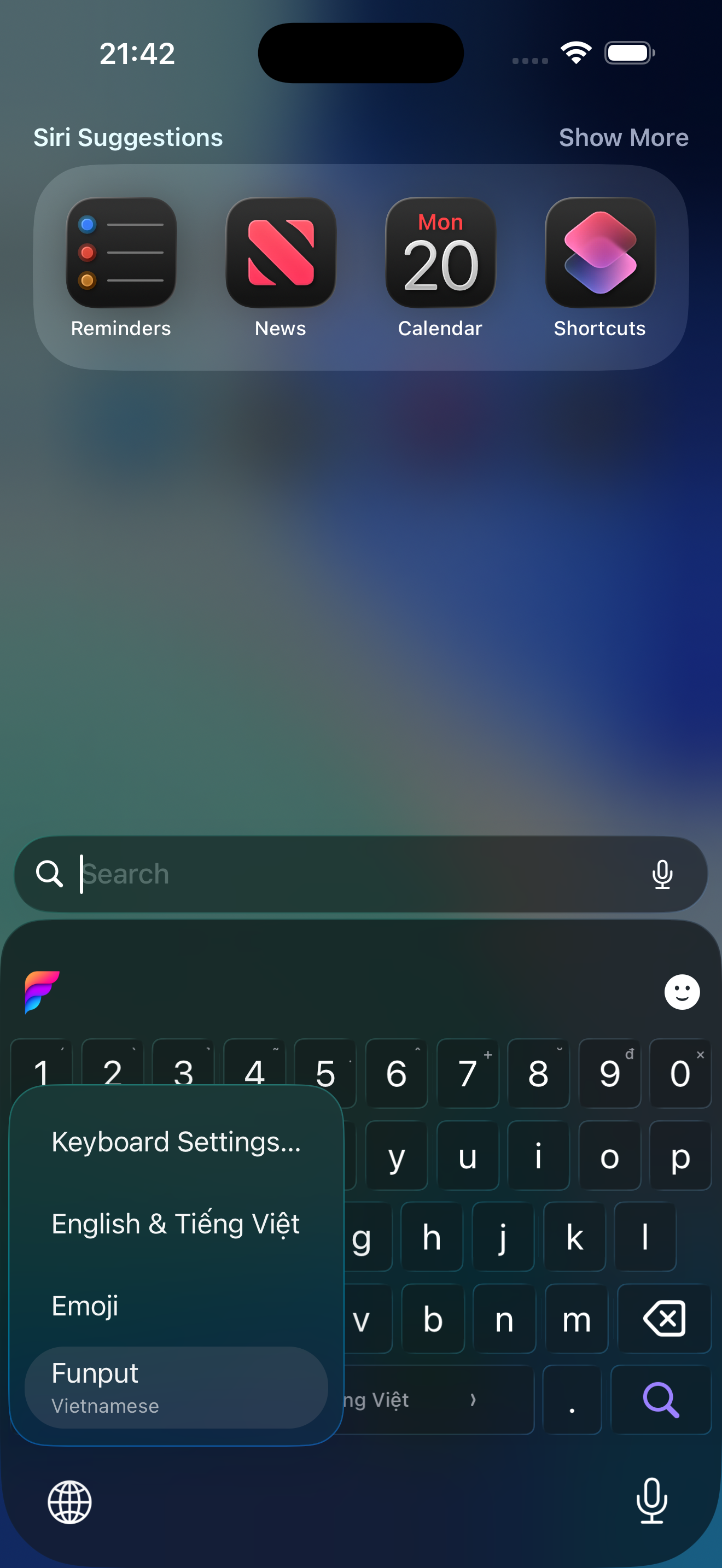
Touch and hold the globe key, then select Funput.
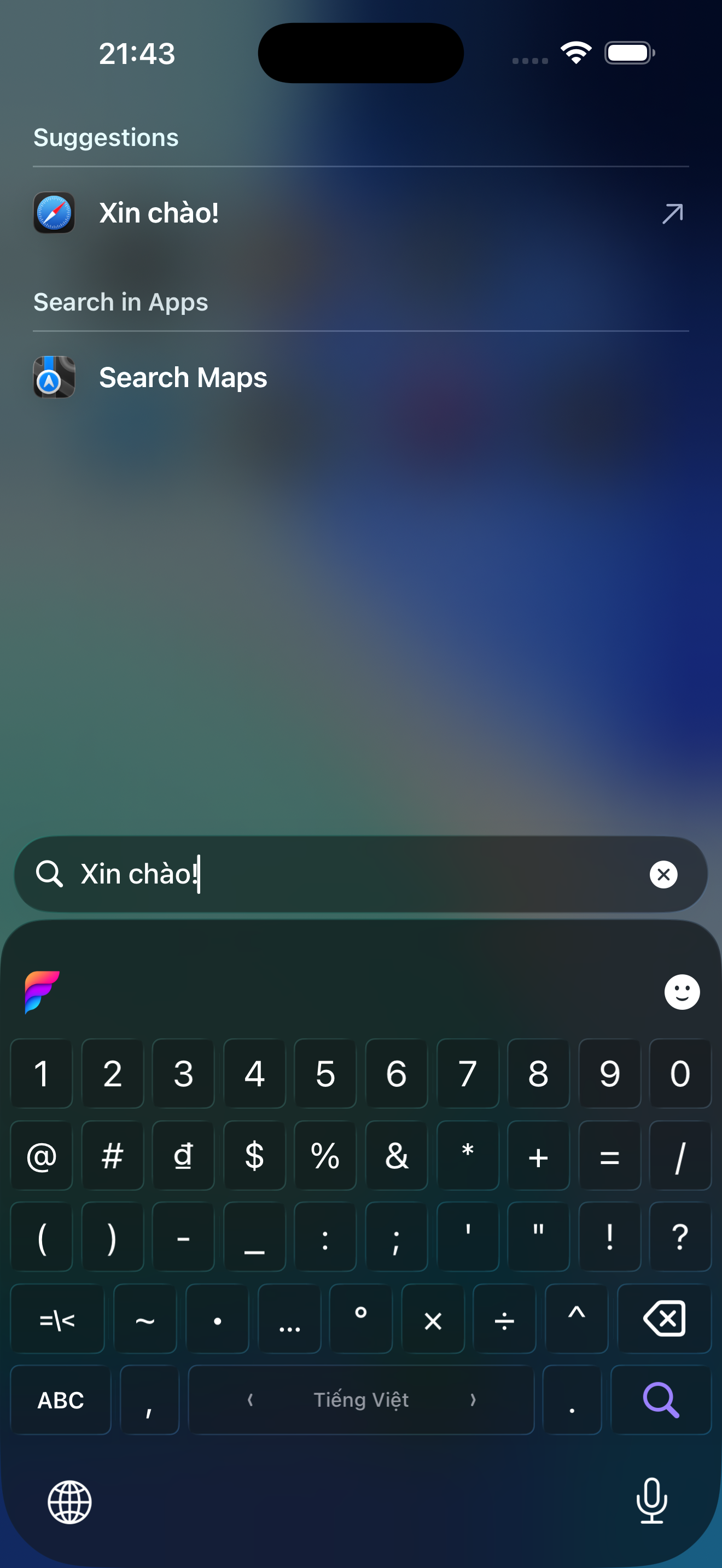
Type Vietnamese text to confirm that Funput is working.
Return to the Funput app. After the keyboard confirms access, the setup card changes to Funput is ready.
Select VNI or Telex
Open Funput → Settings → Keyboard → Input method, then select VNI or Telex. See Vietnamese Typing Guide for key mappings and test examples.
If Funput does not appear
- Confirm that Funput appears under Settings → General → Keyboard → Keyboards.
- Close and reopen the app in which you are entering text.
- Touch and hold the globe key, then select Funput instead of only tapping the key.
- Check that Allow Full Access is enabled.
- Open the Funput keyboard in a text field at least once, then return to the Funput app to refresh its status.
iOS may automatically switch to the system keyboard in password fields and certain secure text fields. This is an iOS security behavior, not a Funput error.